Code / Linux Fundamentals / Chapter 3
Installing Fedora
Companion resources for Chapter 3 — Fedora 43 installation walkthrough with Anaconda installer guide, Btrfs partition layout diagram, VM setup link, and post-install scripts.

nextsteplinux.com/lf3
You scanned the QR code from Chapter 3 of Linux Fundamentals. This page expands on the book content — it does not replace it. The full explanations, exam objectives, practice questions, and glossary are in the book.
Step 1 · Get Fedora
Download Fedora Workstation 43
The book covers Fedora Workstation 43 — the current stable release. Download the ISO from the Fedora Project’s official servers. Always verify the checksum before installing.
🪶
Fedora Xfce Spin 43 — Low RAM / Old Hardware
Running a VM with limited RAM or an older machine? Use the Xfce Spin instead. GNOME 49 in Fedora 43 is Wayland-only and needs 4 GB RAM minimum. Xfce runs comfortably on 1–2 GB and is significantly faster on older CPUs and mechanical drives. All certification content — SELinux, dnf, firewalld, Anaconda — is identical.
✓
Verify the SHA256 checksum
Download the CHECKSUM file alongside the ISO, then run
# Step 1 — Download the official checksum file
curl -O https://fedoraproject.org/static/checksums/Fedora-43-1.0-x86_64-CHECKSUM

# Step 2 — Verify the ISO (both forms are equivalent)
sha256sum --check Fedora-43-1.0-x86_64-CHECKSUM

# Generate a checksum for any file manually
sha256sum Fedora-Workstation-Live-x86_64-43-1.0.iso

# Other hash commands — all use the same -c / --check syntax
md5sum -c file.md5 $ sha1sum -c file.sha1
sha512sum --check file.sha512
✓
GPG signature verification (advanced)
Fedora also signs its checksum file with a GPG key — proving the checksum itself came from the Fedora Project, not just that your ISO matches some checksum.
# Import Fedora's GPG key
curl https://fedoraproject.org/fedora.gpg | gpg --import

# Verify the checksum file's GPG signature
gpg --verify-files Fedora-43-1.0-x86_64-CHECKSUM
Step 2 · Lab Environment
Need to Set Up a Virtual Machine?
The full VM setup guide — VirtualBox and VMware Player, step by step — lives on the Chapter 1 companion page. It covers everything you need before installing Fedora.
VM Setup Guide → /lf1
Complete VirtualBox and VMware Player setup guide with recommended settings for running Ubuntu, Fedora, and Arch Linux. Covers download, install, VM creation, and Guest Additions.
nextsteplinux.com/lf1 → VM Setup section
⚙
Fedora-specific VM settings
When creating your VM, use these settings for Fedora:
Type : Linux — Fedora (64-bit) RAM : 4096 MB minimum (8192 MB recommended — GNOME 49 is Wayland-only) 2048 MB sufficient if using the Xfce Spin CPUs : 2 cores (enable VT-x / AMD-V in BIOS) Storage : 50 GB (dynamically allocated) Video : 128 MB (enable 3D acceleration for GNOME) Network : NAT (internet works out of the box)
Visual Reference
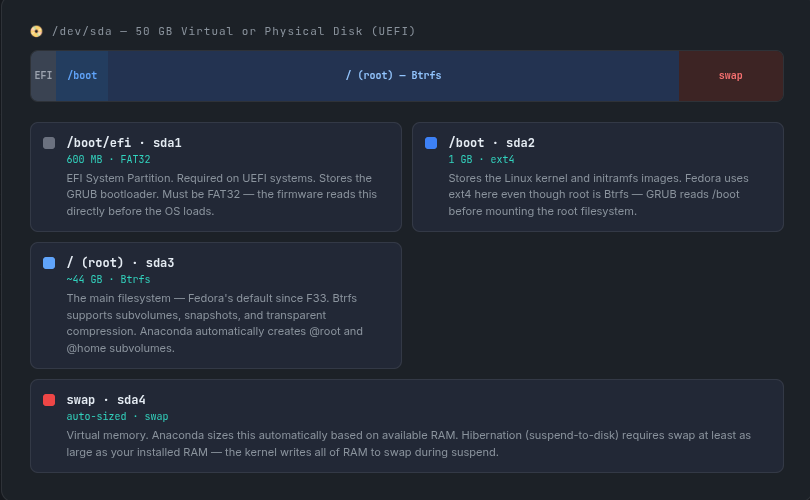
Fedora Default Partition Layout
This is the partition layout Anaconda creates automatically on a 50 GB disk with UEFI. The book explains each partition and why Fedora defaults to Btrfs instead of ext4.
After Installation · Scripts
Post-Install Scripts
These scripts automate the post-installation steps from Chapter 3. Copy and paste into your terminal — each is commented so you know exactly what it does.
01-update-system.sh
Updates all packages to the latest versions. Always run this immediately after a fresh install — the ISO may be weeks behind the latest packages.
#!/bin/bash
# 01-update-system.sh — Update Fedora after fresh install
# Website: nextsteplinux.com/lf3

echo "Starting Fedora system update..."

# Update all installed packages (-y auto-confirms all prompts)
sudo dnf update -y

# Optional: Clean up old metadata to save space
sudo dnf clean all

echo "Update complete. System will now reboot to apply kernel changes."

# Reboot to load the new kernel if one was installed
sudo reboot
02-install-essentials.sh
Installs the tools used throughout the rest of the book. Run after updating the system.
#!/bin/bash
# 02-install-essentials.sh — Install tools used throughout the book
# Website: nextsteplinux.com/lf3

echo "Installing essential development and system tools..."

# 1. Development tools and kernel headers
# Needed for compiling code and installing VM Guest Additions
sudo dnf groupinstall "Development Tools" -y
sudo dnf install kernel-devel kernel-headers -y

# 2. Common CLI utilities
sudo dnf install -y \
    vim \
    git \
    curl \
    wget \
    tree \
    htop \
    net-tools \
    bind-utils \
    bash-completion \
    man-pages

echo "Essential tools installed successfully!"
03-verify-install.sh
Installs the tools used throughout the rest of the book. Run after updating the system.
#!/bin/bash
# 03-verify-install.sh — Verify Fedora installation
# Website: nextsteplinux.com/lf3

echo "=========================================="
echo "      FEDORA VERIFICATION REPORT          "
echo "=========================================="

# 1. Fedora Version
echo -e "\n--- Fedora Version ---"
cat /etc/fedora-release

# 2. Kernel Version
echo -e "\n--- Kernel Version ---"
uname -r

# 3. Disk Layout and Btrfs Subvolumes
# Fedora defaults to Btrfs, which uses subvolumes instead of traditional partitions.
echo -e "\n--- Disk Layout ---"
lsblk
echo -e "\n--- Btrfs Subvolumes ---"
sudo btrfs subvolume list /

# 4. SELinux Status
# Critical for Fedora/Red Hat administration and certification exams.
echo -e "\n--- SELinux Status ---"
getenforce

# 5. Memory and Swap Status
echo -e "\n--- Swap Status ---"
swapon --show
echo -e "\n--- Memory Usage ---"
free -h

# 6. Network Connectivity
echo -e "\n--- Network Connectivity ---"
if ping -c 2 google.com &> /dev/null; then
    echo "Status: Network OK"
else
    echo "Status: Network FAILED"
fi

echo -e "\n=========================================="
echo "          Verification Complete           "
echo "=========================================="