
The Linux Directory Structure: A Beginner’s Guide
Stop Thinking in Folders—Start Thinking in Trees
Metadata:
🟡 Level: Beginner
⏱️ Reading Time: 10 minutes
🏷️ Topic: Filesystem, Command line,
1. Why Linux Uses a “Tree” Structure
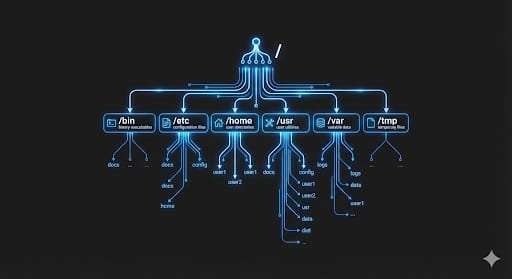
Imagine your computer as a tree growing from a single root. In Linux, that root is called / (just a forward slash). Everything—your programs, settings, documents, even your keyboard and mouse—branches out from this one starting point.
Windows thinking: Files are scattered across drives (C:, D:, E:)
Linux thinking: Everything starts at / and branches logically from there
This might feel weird at first, but it makes Linux incredibly organized. Want to find where programs are installed? Check /bin or /usr/bin. Need to change system settings? Look in /etc. Once you learn the pattern, you’ll never get lost again.
2. The Branches You Actually Need to Know
You don’t need to memorize every directory. Here are the ones that matter for everyday use:
2.1 /home – Your Personal Space
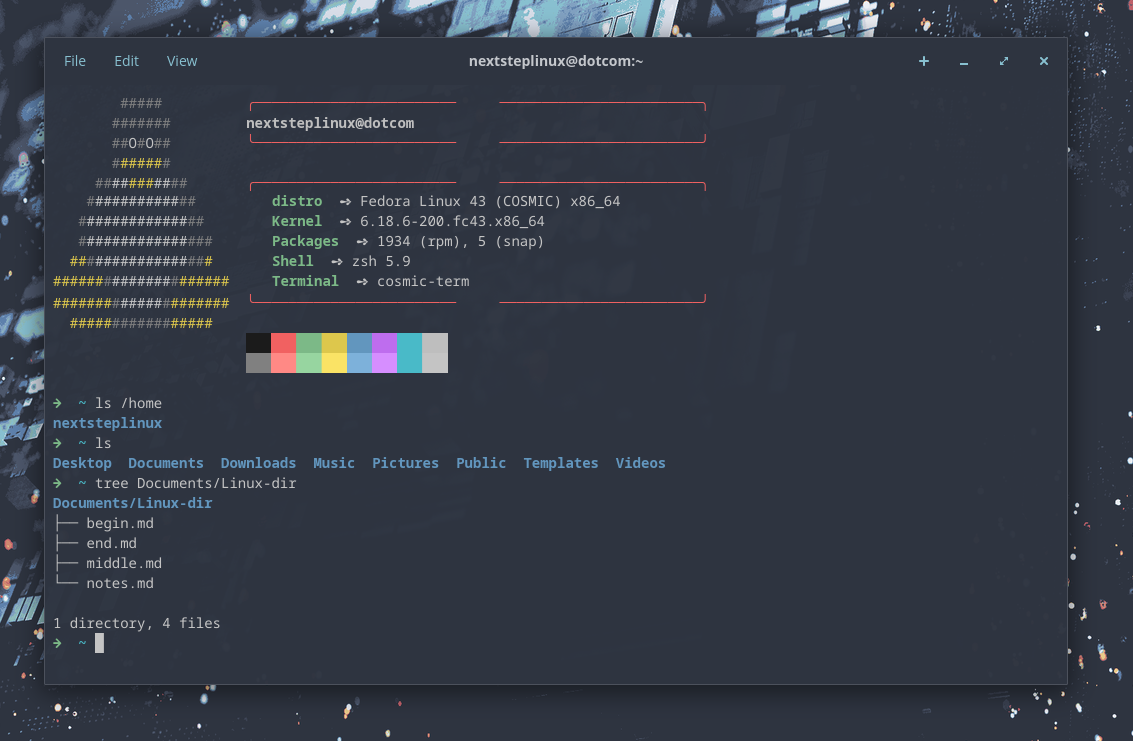
This is where your files live. Think of it like C:\Users\YourName on Windows.
- Your documents, downloads, pictures—everything personal goes here
- Example:
/home/alex/Documentsor/home/alex/Downloads
2.2 /bin and /usr/bin – Where Programs Live
These folders contain the commands you type in the terminal.
- Commands like
ls(list files) andcp(copy files) live here - You rarely touch these directly, but this is where Linux keeps its tools
2.3 /home vs /root – Two Different “Homes”
/home= where regular users (like you) keep their files/root= the home folder for the system administrator account- Think of
/rootas the boss’s office—you need special permission to enter
2.4 /tmp – The Trash Bin (That Empties Itself)
Temporary files go here and get deleted automatically when you restart.
- Downloads that didn’t finish, cached website data, etc.
- Safe to ignore—Linux cleans this up for you
2.5 /etc – System Settings
Short for “et cetera” (or “editable text configuration”), this is where Linux stores configuration files.
- Wi-Fi passwords, startup programs, system preferences—it’s all here
- Example:
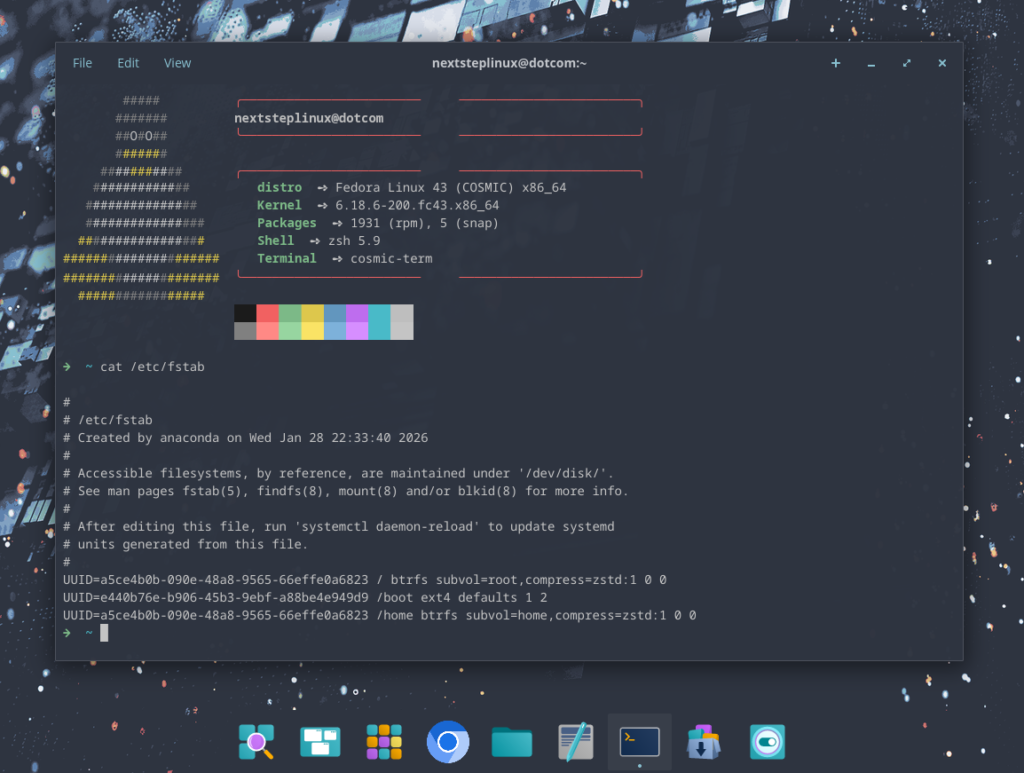
/etc/fstabcontrols which drives mount at startup
2.6 /var – The Stuff That Changes
“Variable data” like logs, email, and print jobs.
- If something goes wrong, tech support might ask you to check
/var/logfor error messages - Most users never need to look here
2.7 /dev – Your Hardware, as Files
In Linux, everything is treated as a file—even your hard drive and USB stick.
- Your main hard drive might be
/dev/sda - Your webcam might be
/dev/video0 - Weird, but powerful: it lets programs talk to hardware using simple file commands
3. The Quick Reference Guide
| Directory | What It’s For | Windows Equivalent |
|---|---|---|
/home | Your personal files | C:\Users\YourName |
/bin | Essential programs | C:\Windows\System32 |
/etc | System settings | C:\Windows\System32\config |
/tmp | Temporary files (auto-deleted) | C:\Temp |
/usr | Installed programs & shared files | C:\Program Files |
/var | Logs, emails, changing data | C:\ProgramData |
/dev | Hardware devices (as files) | Device Manager (but as files) |
/root | Admin’s home folder | C:\Users\Administrator |
4. How to Actually Use This
Scenario 1: You installed a program and can’t find it
- Try:
ls /usr/binorls /usr/local/bin - Programs often install executables here
Scenario 2: You want to back up your files
- Just copy your
/home/yournamefolder - Everything personal is in there
Scenario 3: Something broke and you need logs
- Check:
ls /var/log - Look for files with recent timestamps
Scenario 4: You plugged in a USB drive
- It appears in
/dev(like/dev/sdb1) - Linux auto-mounts it to
/mediaor/mntso you can access files
The One Thing to Remember
Linux isn’t messy—it’s organized like a tree.
/is the root (the trunk)/home,/etc,/usrare the main branches- Your files, programs, and settings each have their place
Next time you open a terminal, try this:
ls /
You’ll see the main branches of the tree. Pick one and explore:
ls /home
ls /etc
The more you navigate, the more natural it becomes. Soon you’ll stop thinking “Where did Linux hide this?” and start thinking “This should be in /etc“—and you’ll be right.
4.1 The One Thing to Remember
Linux isn’t messy—it’s organized like a tree.
/is the root (the trunk)/home,/etc,/usrare the main branches- Your files, programs, and settings each have their place
Next time you open a terminal, try this:
ls /
You’ll see the main branches of the tree. Pick one and explore:
ls /home
ls /etc
The more you navigate, the more natural it becomes. Soon you’ll stop thinking “Where did Linux hide this?” and start thinking “This should be in /etc“—and you’ll be right.