Code / Linux Fundamentals / Chapter 6
File Permissions & Ownership

nextsteplinux.com/lf6
You scanned the QR code from Chapter 6 of Linux Fundamentals. This page is a quick reference companion — it does not replace the chapter. Full explanations, exam objectives, practice questions, and glossary are in the book.
Quick Reference · Permissions
The rwx Permission Model
Every file and directory has three permission classes and three bits per class. Nine bits total, plus a file-type character — ten characters in ls -l output.
file type: – regular d directory l symlink c char b block
|
Permission Bits |
All Distros |
||
|---|---|---|---|
|
Bits |
Value |
On a File |
On a Directory |
|
r |
4 |
Read file contents |
List contents with ls |
|
w |
2 |
Modify or truncate the file |
Create, delete, rename files inside |
|
x |
1 |
Execute as a program or script |
Enter with cd and access contents |
|
– |
0 |
Bit not set |
|
Octal |
Binary / String |
Meaning |
|---|---|---|
|
7 |
|
Full Access: Read, Write, and Execute |
|
6 |
|
Read & Write: Standard for data files |
|
5 |
|
Read & Execute: Standard for directories and scripts |
|
4 |
|
Read Only |
|
3 |
|
Write and Execute (Rarely used) |
|
2 |
|
Write Only (Rarely used) |
|
1 |
|
Execute Only |
|
0 |
|
No Access |
[!TIP]
The “Calculation” Shortcut
To quickly find the octal number, just add the values assigned to each letter in the trio:
r = 4
w = 2
x = 1
Example: r-x is 4 (read) + 0 (no write) + 1 (execute) = 5.
Quick Reference · chmod
chmod — Changing Permissions
Two notation styles — symbolic and octal. Both are tested on Linux+ and LPIC-1. Master both.
Symbolic Mode
Syntax: chmod [class][operator][bits] file — class: u g o a · operator: + – =
|
Command |
Effect |
|
chmod u+x script.sh |
Add execute for owner |
|
chmod g-w file.txt |
Remove group write |
|
chmod o= private.key |
Remove ALL other permissions |
|
chmod a+r readme.txt |
Add read for everyone (u+g+o) |
|
chmod u+x,g+r,o-rwx |
Multiple classes in one command |
|
chmod ug=rw,o= file |
Set exactly: owner+group=rw, others=none |
|
chmod -R g+rx /dir |
Recursive: add group r+x to dir and contents |
Octal Mode — Common Values
Common Permission “Cheat Sheet”
644
Standard Files (Owner can edit, everyone else can only read).
755
Standard Directories or Scripts (Everyone can enter/run).
600
Private Sensitive Files (Only the owner can read/write).
700
Private Folders (Only the owner can enter).
Quick Reference Quick Reference · Ownership · chmod
chown and chgrp — Changing Ownership
Only root can change a file’s owner. A regular user can only change a file’s group to one they belong to.
chown · chgrp · id · groups
|
Command |
What It Does |
|
chown talha file |
Change owner to talha |
|
chown talha:devteam file |
Change owner AND group in one command |
|
chown :devteam file |
Change group only (colon syntax) |
|
chown -R talha:dev /dir |
Recursive ownership change |
|
chgrp devteam file |
Change group (equivalent to chown :devteam) |
|
chgrp -R devteam /dir |
Recursive group change |
|
id |
Show your UID, GID, and all supplementary groups |
|
id username |
Show another user’s UID/GID/groups |
|
groups |
List your group memberships |
|
stat file |
Show octal permissions, UID, GID, and timestamps |
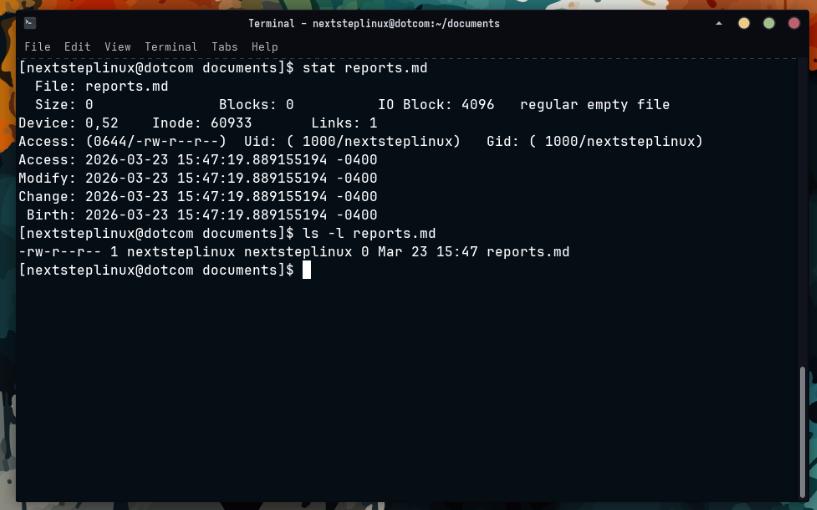
Verifying with ls -l
The ls -l command displays a detailed list of files, including the specific columns for the Owner and the Group.
Using the stat Command
For a more detailed view without the extra noise of a full directory listing, you can use the stat command followed by the filename. This provides a clear “Access” line showing both the UID (User ID) and GID (Group ID) along with their names.
Quick Reference · Special Permissions
Setuid, Setgid & Sticky Bit
Three special bits represented as a leading octal digit and as s/S/t/T characters in ls -l output.
Setuid
SUID
octal 4000 · chmod u+s
On a File
Process runs as file owner’s UID. Example: /usr/bin/passwd runs as root.
On a Directory
No defined effect on Linux.
ls -l shows
s (execute set) or S (execute not set) in owner-execute position
Setgid
SGID
octal 2000 · chmod g+s
On a File
Process runs as file group’s GID.
On a Directory
New files inherit the directory’s group. Used for shared project dirs.
ls -l shows
s or S in group-execute position
Sticky Bit
Sticky
octal 1000 · chmod +t
On a File
Obsolete — no effect on Linux.
On a Directory
Users can only delete files they own. Classic example: /tmp (1777).
ls -l shows
t or T in other-execute position
special permissions
This script creates a controlled environment to demonstrate how these bits change a file’s metadata and behavior.
#!/bin/bash
# special-permissions — Special Permissions Practice
# Master SUID, SGID, and the Sticky Bit
# nextsteplinux.com/lf5

# Create a sandbox
mkdir -p /tmp/permissions-demo && cd /tmp/permissions-demo

echo "=== STEP 1: SUID (Set User ID) ==="
touch app-bin
chmod 755 app-bin
echo "Before: $(ls -l app-bin)"
# Set SUID (Octal 4)
chmod 4755 app-bin
echo "After (Look for 's'): $(ls -l app-bin)"

echo -e "\n=== STEP 2: SGID (Set Group ID) ==="
mkdir shared-folder
chmod 775 shared-folder
echo "Before: $(ls -ld shared-folder)"
# Set SGID (Octal 2)
chmod 2775 shared-folder
echo "After (Look for 's' in group): $(ls -ld shared-folder)"

echo -e "\n=== STEP 3: Sticky Bit ==="
mkdir public-upload
chmod 777 public-upload
echo "Before: $(ls -ld public-upload)"
# Set Sticky Bit (Octal 1)
chmod 1777 public-upload
echo "After (Look for 't' at the end): $(ls -ld public-upload)"

echo -e "\n=== STEP 4: Combining Special Bits ==="
# SUID (4) + SGID (2) = 6
touch multi-bit-file
chmod 6755 multi-bit-file
echo "SUID + SGID (Look for two 's' characters):"
ls -l multi-bit-file

# Cleanup
echo -e "\n=== Cleanup ==="
cd ~ && rm -rf /tmp/permissions-demo
echo "Sandbox /tmp/permissions-demo removed."
[!TIP]
Pro-Tip: The Sticky Bit on Files
While the Sticky Bit is vital for directories (like /tmp), it has no practical effect on files in modern Linux. If you see it on a file, it is likely there by mistake.
Quick Reference · umask
umask — Default Permission Control
umask bits are subtracted from base permissions (666 for files, 777 for directories) at creation time. Files never get execute by default.
Common umask Values
umask
|
umask |
New Files (base 666) |
New Directories (base 777) |
|
022 |
644 rw-r–r– |
755 rwxr-xr-x |
|
027 |
640 rw-r—– |
750 rwxr-x— |
|
077 |
600 rw——- |
700 rwx—— |
|
002 |
664 rw-rw-r– |
775 rwxrwxr-x |
# View, set, and persist umask
umask

# show current (octal) 0022
umask -S

# symbolic output u=rwx,g=rx,o=rx
umask 027

# set for current session
echo "umask 027" >> ~/.bashrc
# persist for user
Quick Reference · Security
Permission Security Audit
These find commands are used in production to audit permission misconfigurations. Know them for both practical administration and for exam scenarios.
Security Audit Commands
All Distros
|
Command |
What It Finds |
|
find / -perm /4000 -type f 2>/dev/null |
All setuid files (run as owner UID) |
|
find / -perm /2000 -type f 2>/dev/null |
All setgid files (run as group GID) |
|
find / -perm /6000 -type f 2>/dev/null |
All setuid or setgid files |
|
find /etc -perm -o+w -type f 2>/dev/null |
World-writable files in /etc (should be zero) |
|
find / -nouser -o -nogroup 2>/dev/null |
Orphaned files with no valid owner or group |
|
find /home -perm -o+r 2>/dev/null |
Home files readable by others |
Quick-Fix Reference Table
|
Scenario |
The Problem |
The Fix (Commands) |
|---|---|---|
|
SSH Key Denied |
Private keys are “too open” and readable by others. |
|
|
Web Server 403 Error |
The web user cannot read the files or enter the folder. |
|
|
Collaborative Conflict |
Group members cannot edit each other’s files. |
|
[!TIP]
The “Golden Rule” of Permissions
Always follow the Principle of Least Privilege. It is tempting to run chmod 777 to “just make it work,” but this allows any user or malicious script to delete or modify your files. Instead, find the correct owner and group and use the minimum permissions necessary (usually 644 for files and 755 for directories).
Exam Alert: The SSH “600” Requirement
Both the CompTIA Linux+ and LPIC-1 exams frequently test your knowledge of secure file access. A very common question asks for the specific octal permission required for a private SSH key. Always remember that 600 is the standard, as any looser permissions will cause the SSH service to reject the connection.
Distribution Home Directory Defaults
|
Setting |
Ubuntu |
Fedora |
Arch Linux |
|
Default umask |
022 |
022 |
022 |
|
Home dir mode |
755 |
700 (restrictive) |
755 |
|
/tmp sticky |
1777 |
1777 |
1777 |
|
Root SSH login |
Disabled |
Disabled |
Disabled |
Fedora’s 700 home directories mean other users cannot browse or read files in /home/username at all. Ubuntu and Arch use 755. This difference appears in exam scenarios involving user access across accounts.
Practice · Scripts
Practice Scripts
Three scripts that build hands-on familiarity with the core Chapter 6 commands. All work on Ubuntu, Fedora, and Arch Linux. They create a sandbox in /tmp and clean up after themselves.
01-check-permissions.sh
Practice Drill 01: Interpreting Permissions
01-check-permissions.sh

Goal: Practice translating between symbolic (rwx) and octal (755) notation using real system files.
#!/bin/bash
# 01-check-permissions.sh — Read and interpret permission strings
# Companion to Chapter 6: Permissions and Ownership
# nextsteplinux.com/lf6

# Clear screen for a clean workspace
clear

echo "=== STEP 1: Reading Live Permission Strings ==="
# ls -l breakdown: permissions | links | owner | group | size | date | name
#
ls -l /etc/passwd /etc/shadow /etc/hostname /etc/hosts 2>/dev/null

echo -e "\n=== STEP 2: Verifying with Octal (stat) ==="
# stat reveals the numerical value directly (e.g., 644 or 400)
stat /etc/passwd | grep -E "File:|Access:"

echo -e "\n=== STEP 3: Identifying Special Permissions (SUID) ==="
# Look for the 's' in the owner's execute position
ls -l /usr/bin/passwd /usr/bin/sudo 2>/dev/null

echo -e "\n=== STEP 4: Checking the Sticky Bit (+t) ==="
# Look for the 't' in the others' execute position on world-writable dirs
ls -ld /tmp

echo -e "\n=== STEP 5: Your Identity and Groups ==="
# id shows your current UID, GID, and secondary groups
id
echo "Current Groups:"
groups

echo -e "\n=== STEP 6: Security Audit (World-Writable Check) ==="
# Audit: Finding files anyone can write to (expecting zero results)
#
find /etc -perm -o+w -type f 2>/dev/null | head -n 5

echo -e "\nDone. Compare these results with the Octal Reference in Chapter 6."
Online Layout: The Permission Translator
|
File |
Symbolic |
Octal |
Meaning |
|---|---|---|---|
|
|
|
644 |
Owner can edit; Everyone can read. |
|
|
|
640 |
(Ubuntu/Fedora) Only root and shadow group can read. |
|
|
|
1777 |
Everyone can write, but only owners can delete their own files. |
[!IMPORTANT]
EXAM ALERT: The /etc/shadow Distinction
As highlighted in your Chapter 5 FHS notes, sensitive files have restricted permissions. On the exam, you may be asked why a regular user cannot cat /etc/shadow. The answer is always in the permissions: only the root user (or those in a specific privileged group) has the r (read) bit for this file.
Certification Note: Identity & Access
[!NOTE]
The id and groups commands are essential for troubleshooting “Permission Denied” errors. Before changing a file’s permissions, a sysadmin uses these commands to verify if the user belongs to the group listed in the ls -l output.
02-chmod-practice.sh
Practice Drill 02: chmod Mastery
02-chmod-practice.sh

Goal: Practice switching between numeric and symbolic modes to control file access.
#!/bin/bash
# 02-chmod-practice.sh — chmod symbolic and octal practice
# Companion to Chapter 6: Permissions and Ownership
# nextsteplinux.com/lf6

# Create and enter the sandbox
mkdir -p /tmp/lf6-chmod && cd /tmp/lf6-chmod
touch script.sh document.txt config.conf secret.key

echo "=== Starting permissions (Default) ==="
ls -l

echo -e "\n=== STEP 1: Octal chmod (Numeric) ==="
# Standard practice: Use octal for setting the entire string at once
chmod 755 script.sh     # rwxr-xr-x (Executable)
chmod 644 document.txt   # rw-r--r-- (Standard Data File)
chmod 640 config.conf   # rw-r----- (Group restricted)
chmod 600 secret.key    # rw------- (Private/Sensitive)
ls -l

echo -e "\n=== STEP 2: Symbolic chmod (Text) ==="
# Standard practice: Use symbolic for targeted "tweaks"
chmod o= secret.key     # Remove ALL permissions for 'others'
chmod g+w document.txt  # Add write permission for the group
chmod u-x script.sh     # Remove execute permission for the owner
ls -l

echo -e "\n=== STEP 3: Special Permissions ==="
# CERT NOTE: 2 = setgid, 1 = sticky bit
mkdir shared_dir
chmod 2775 shared_dir   # SetGID: New files inherit the parent group
ls -ld shared_dir

chmod 1777 shared_dir   # Sticky Bit: Only file owners can delete their files
ls -ld shared_dir

echo -e "\n=== STEP 4: Verification with stat ==="
# stat provides the numerical confirmation of your changes
stat -c "File: %n | Octal: %a | Symbolic: %A" secret.key

# Cleanup
echo -e "\n=== Cleanup ==="
cd ~ && rm -rf /tmp/lf6-chmod
echo "Sandbox cleaned up."
Online Reference: Octal vs. Symbolic
|
Method |
Best Used For… |
Example |
|---|---|---|
|
Octal (755) |
Total Reset: Setting the exact permission string from scratch. |
|
|
Symbolic (u+x) |
Tweaking: Adding or removing a specific permission without affecting others. |
|
[!TIP]
Pro-Tip: The “Equal” Sign
In symbolic mode, using = (e.g., chmod g=rx) is a “hard set.” It doesn’t just add permissions; it resets that specific category (User, Group, or Others) to exactly what you specify, clearing any other bits that were previously there. verify if the user belongs to the group listed in the ls -l output.
Exam Alert: Numeric Special Bits
When setting special permissions in octal, a fourth digit is added to the beginning:
- 4: SUID (
chmod 4755) - 2: SGID (
chmod 2775) - 1: Sticky Bit (
chmod 1777)
On the Linux+ and LPIC-1 exams, you may be asked to identify the resulting permission string of a command like chmod 2755. Remember that the 2 indicates SGID, which will appear as an s in the group’s execute position (rwxr-sr-x).
03-chown-practice.sh
Practice Drill 03: Ownership, Masks, and Auditing
File Name: 03-chown-practice.sh

Goal: Master the chown command and understand how umask determines the permissions of every new file you create.
#!/bin/bash
# 03-chown-practice.sh — chown, chgrp, umask, and audit practice
# Companion to Chapter 6: Permissions and Ownership
# nextsteplinux.com/lf6

# 1. Identity Check
echo "=== STEP 1: Your Current Identity ==="
# Knowing your UID and GID is the first step in troubleshooting ownership
id
echo "Your Groups: $(groups)"

# 2. umask Demonstration
echo -e "\n=== STEP 2: The umask (Default Permissions) ==="
# umask defines what permissions are REMOVED from the system default
echo "Current umask: $(umask)"
mkdir -p /tmp/lf6-umask && cd /tmp/lf6-umask

# Create files with default mask (usually 022)
touch default-file.txt
mkdir default-dir
echo "Permissions with default mask (022):"
ls -la | grep "default"

# 3. Changing the umask
echo -e "\n=== STEP 3: Restricting New Files (umask 027) ==="
# 027 removes all permissions for 'others' and write for 'group'
umask 027
touch restricted-file.txt
mkdir restricted-dir
echo "Permissions with restricted mask (027):"
ls -la | grep "restricted"
umask 022 # Restore default for the rest of the script

# 4. chown Examples (Requires sudo)
echo -e "\n=== STEP 4: Ownership Changes (chown) ==="
touch owned.txt
echo "Original Owner: $(ls -l owned.txt | awk '{print $3}')"

# Changing owner to root (This will prompt for your password)
echo "Attempting to change owner to root..."
sudo chown root:root owned.txt
ls -l owned.txt

# Restoring ownership to yourself
sudo chown $USER:$USER owned.txt
echo "Ownership restored to $USER."

# 5. Permission Audit with find
echo -e "\n=== STEP 5: Security Audit (SUID/SGID) ==="
# These find patterns hunt for files with elevated privileges
#
echo "Top 10 SUID binaries in /usr/bin:"
find /usr/bin -perm /4000 -type f 2>/dev/null | head -10

echo -e "\nTop 10 SGID binaries in /usr/bin:"
find /usr/bin -perm /2000 -type f 2>/dev/null | head -10

# Cleanup
echo -e "\n=== Cleanup ==="
cd ~ && rm -rf /tmp/lf6-umask
echo "Done. Practice sandbox removed."
[!IMPORTANT] On the Linux+ and LPIC-1 exams, remember that chown can change both the Owner and the Group at the same time using a colon or a dot.chown user_n0mad:nextsteplinux file (Standard)chown user_nomad.nextsteplinux file (Legacy/Alternative)
If you only want to change the group, you can use the shortcut: chown :nextsteplinux file.