
Code / Linux Fundamentals / Chapter 5
Shell & Command Basics

nextsteplinux.com/lf5
You scanned the QR code from Chapter 5 of Linux Fundamentals. This page is a quick reference companion — it does not replace the chapter. Full explanations, exam objectives, practice questions, and glossary are in the book.
Quick Reference · Navigation
Filesystem Navigation
The three commands you use constantly to move around and see where you are. Know every flag — these appear in exam questions regularly.
|
pwd · cd · ls
|
|
|---|---|
|
Command |
What It Does |
|
pwd |
Print current working directory (absolute path) |
|
cd /path |
Change to absolute path |
|
cd subdir |
Change to relative path |
|
cd ~ |
Go to your home directory |
|
cd .. |
Go up one directory level |
|
cd – |
Return to previous directory |
|
ls |
List directory contents |
|
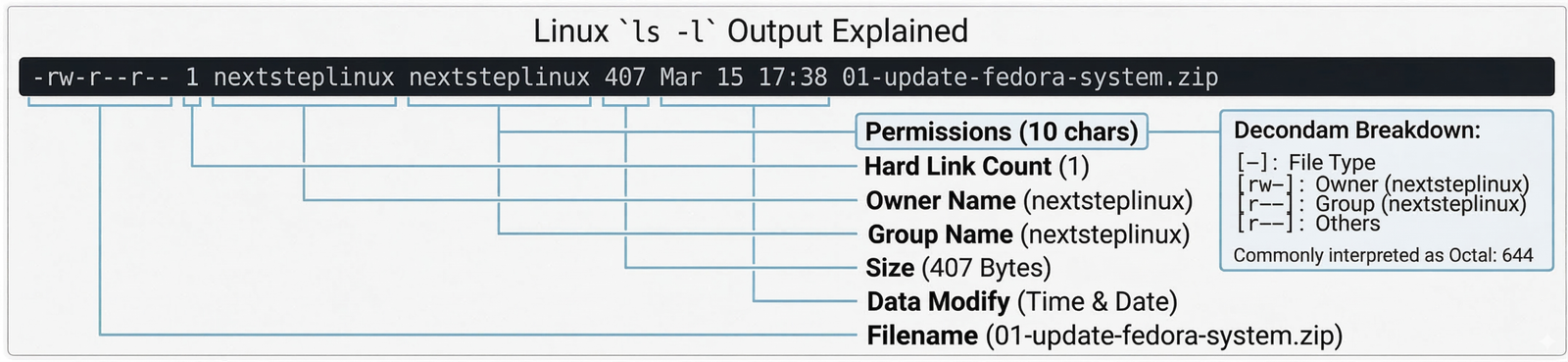
ls -l |
Long format — permissions, owner, size, date |
|
ls -a |
Show hidden files (names starting with .) |
|
ls -la |
Long format + hidden files (most common) |
|
ls -lh |
Human-readable sizes (KB, MB, GB) |
|
ls -R |
Recursive — list all subdirectories |
Quick Reference · Files
Essential File Operations
Create, copy, move, remove. Know the key flags for each — especially the difference between cp -r and cp -a, and why rm -rf has no undo.
|
mkdir · touch · cp · mv · rm
|
|
|---|---|
|
Command |
What It Does |
|
mkdir dir |
Create a directory |
|
mkdir -p a/b/c |
Create nested dirs — no error if they exist |
|
touch file |
Create empty file or update its timestamp |
|
cp src dst |
Copy a file |
|
cp -r src/ dst/ |
Copy directory recursively (no attribute preservation) |
|
cp -a src/ dst/ |
Archive copy — recursive + all attributes preserved |
|
cp -p src dst |
Preserve timestamps, ownership, permissions |
|
mv old new |
Rename a file |
|
mv file dir/ |
Move file into directory |
|
mv -i src dst |
Prompt before overwriting |
|
rm file |
Remove a file (no recycle bin) |
|
rm -i file |
Ask for confirmation first |
|
rm -r dir/ |
Remove directory recursively |
|
rm -rf dir/ |
Recursive + force — no prompts, no undo |
|
rmdir dir |
Remove an EMPTY directory only |
Visual Reference · Filesystem
Viewing File Contents
Know which viewer to reach for: cat for short files, less for long files, tail -f for live log monitoring. The less navigation keys are the same as man pages.
|
cat · less · head · tail · grep
|
|
|---|---|
|
Command |
What It Does |
|
cat file |
Print entire file to terminal |
|
cat -n file |
Print with line numbers |
|
less file |
Page through file — supports forward AND backward |
|
less -N file |
Page through file with line numbers |
|
less +F file |
Follow file as it grows (like tail -f) |
|
head file |
Show first 10 lines |
|
head -n 20 file |
Show first 20 lines |
|
tail file |
Show last 10 lines |
|
tail -n 50 file |
Show last 50 lines |
|
tail -f file |
Follow file in real time (Ctrl+C to stop) |
|
tail -F file |
Follow by filename — reconnects if file is rotated |
|
grep pattern file |
Print lines matching pattern |
|
grep -i pattern file |
Remove directory recursively |
|
grep -r pattern dir/ |
Recursive search through directory |
|
grep -v pattern file |
Invert — show lines that do NOT match |
|
grep -n pattern file |
Show line numbers with matches |
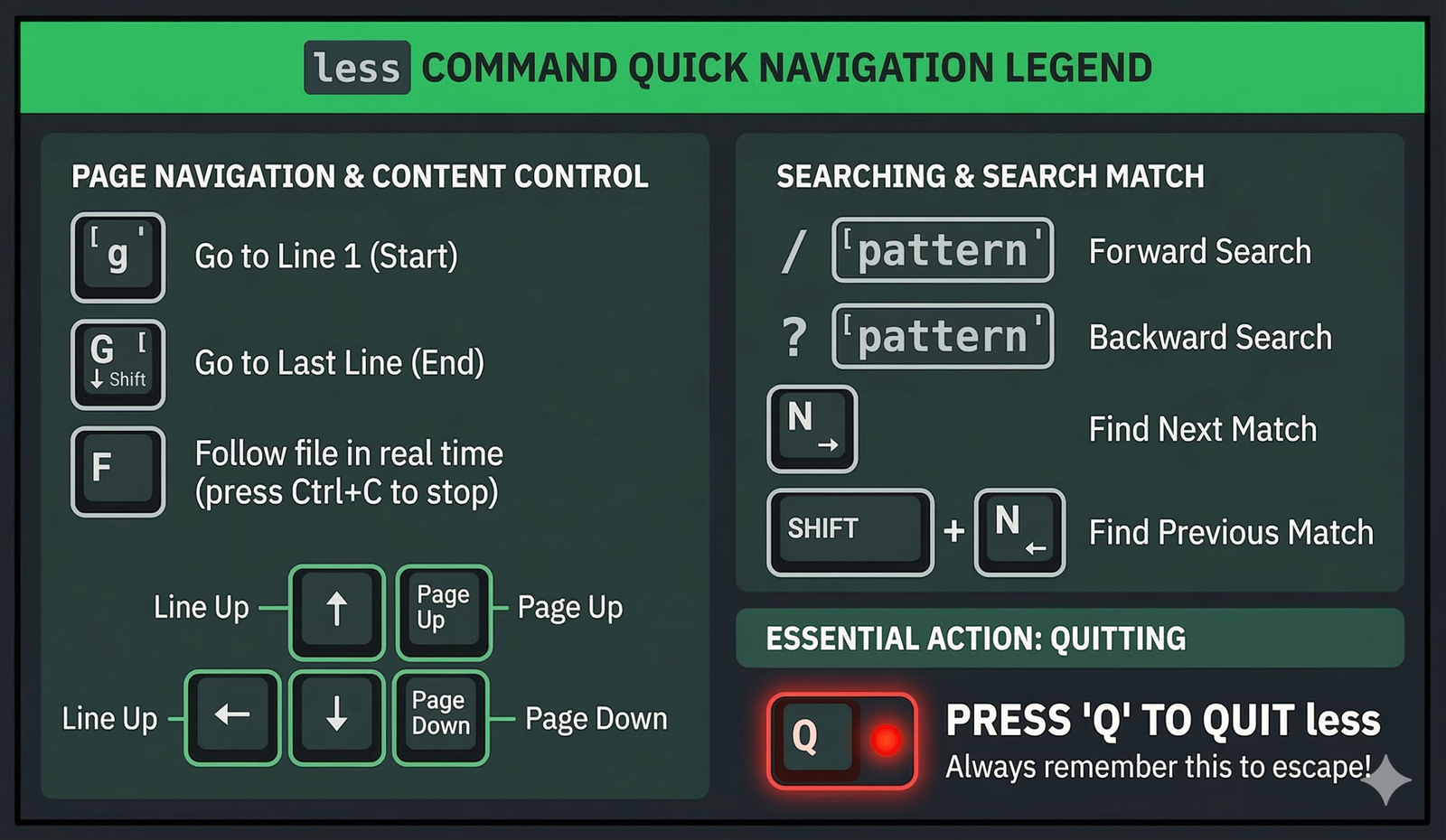
A “Hidden” Pro Feature: F (Tail)
If you are viewing a log file with less, pressing Shift + F puts less into “follow” mode (similar to tail -f). It will wait for new data to be appended to the file and display it in real-time. Press Ctrl + C to stop following and go back to normal navigation.
Visual Reference · Filesystem
Linux Directory Hierarchy (FHS)
The Filesystem Hierarchy Standard defines where things live. These directories and their purposes come up frequently — know the highlighted ones especially well.
|
Directory
|
Contents |
Exam Weight |
|---|---|---|
|
/ |
Root — top of the entire filesystem tree |
★★★ |
|
/etc |
System-wide configuration files — sshd_config, fstab, passwd, hostname |
★★★ |
|
/var/log |
Log files — syslog, auth.log, nginx/, journal/ |
★★★ |
|
/tmp |
Temporary files — world-writable, cleared on reboot |
★★★ |
|
/proc |
Virtual filesystem — kernel and process info (not on disk) |
★★★ |
|
/dev |
Device files — /dev/sda, /dev/null, /dev/random |
★★★ |
|
/home |
User home directories — /home/username |
★★ |
|
/root |
Root user’s home directory (not inside /home) |
★★ |
|
/bin |
Essential user commands — ls, cp, mv, cat (symlink → /usr/bin on modern distros) |
★★ |
|
/sbin |
System admin commands — fdisk, ip (symlink → /usr/sbin on modern distros) |
★★ |
|
/usr |
User programs — /usr/bin, /usr/lib, /usr/share |
★★ |
|
/boot |
Boot files — kernel (vmlinuz), initrd, GRUB |
★★ |
|
/sys |
Virtual filesystem — hardware/driver info (not on disk) |
★★ |
|
/lib |
Shared libraries required by /bin and /sbin |
★ |
|
/mnt |
Temporary manual mount point |
★ |
|
/media |
Removable media — USB drives, optical discs |
★ |
|
/opt |
Optional third-party software |
★ |
Quick Reference · I/O
Redirection and Pipes
Standard streams, redirection operators, and pipes. The order of 2>&1 matters — this is one of the most tested redirection patterns.
|
stdin · stdout · stderr · pipes
|
|
|---|---|
|
Operator |
Meaning |
|
> |
Redirect stdout to file (overwrite) |
|
>> |
Redirect stdout to file (append) |
|
2> |
Redirect stderr to file |
|
2>> |
Append stderr to file |
|
> file 2>&1 |
Redirect stdout AND stderr to file (correct order) |
|
&> |
Redirect both stdout and stderr (Bash 4+ shorthand) |
|
< |
Redirect file as stdin to command |
|
| |
Pipe — stdout of left becomes stdin of right |
|
tee file |
Show hidden files (names starting with .) |
|
ls -la |
Long format + hidden files (most common) |
|
ls -lh |
Human-readable sizes (KB, MB, GB) |
|
ls -R |
Recursive — list all subdirectories |
In Linux, the shell processes redirections from left to right. Think of it as a plumber connecting pipes one by one.
1) > file: The shell looks at File Descriptor 1 (STDOUT) and points it to file.
2) 2>&1: The shell looks at File Descriptor 2 (STDERR) and says, “Point this to wherever FD1 is currently pointing.” Since FD1 is already pointing to the file, FD2 follows suit.
- Result: Everything (output and errors) ends up in the file.
1) 2>&1: The shell looks at FD2 and points it to wherever FD1 is currently pointing. By default, FD1 points to your Terminal. So, FD2 is now locked onto your screen.
2) > file: The shell then moves FD1 to the file.
- Result: Regular output goes to the file, but errors are still dumped onto your screen.
|
Pattern |
The “Human” Translation |
Pro-Tip |
|---|---|---|
|
|
“Show me every process, then filter for the one named nginx.” |
Add |
|
|
“Read the log, find the errors, and show me only the most recent 20.” |
Using |
|
|
“List files, save the FULL list to a file, but only show me .conf files on screen.” |
|
Quick Reference · Productivity
Essential Keyboard Shortcuts
These shortcuts work in Bash on any Linux system. Ctrl+R alone will save you more time than almost anything else you learn in this chapter.
Reverse history search — type to find a previous command
Scroll through previous / next commands
Autocomplete command name or filename
Show all possible completions when ambiguous
Move cursor to beginning of line
Move cursor to end of line
Delete from cursor to beginning of line
Delete from cursor to end of line
Delete the word before the cursor
Clear the screen (same as the clear command)
Cancel / kill the running command
End of input / logout from shell session
Command
What it Does
history
Lists your command history with line numbers.
history 20
Shows only the last 20 commands you ran.
!503
Re-runs the command at line 503 in your history.
!!
Re-runs the very last command.
sudo !!
Re-runs the last command with root privileges.
!grep
Re-runs the most recent command starting with “grep”.
[!TIP]
The “Invisible” Command
If you need to type a command that contains a password, API key, or sensitive data, start the command with a leading space.$ mysql -u admin -p'Secret123'
Because of the space before mysql, the shell will execute it but will not save it to your .bash_history file. This is a vital security habit for any Linux admin.
Quick Reference · Help
Getting Help from the System
You never need to memorize every flag. Know how to find what you need quickly — man, –help, and apropos are the three tools that matter most.
|
man · –help · apropos · whatis
|
|
|---|---|
|
Command |
What It Does |
|
man command |
Full manual page for a command |
|
man 5 passwd |
Manual page in section 5 (file formats) |
|
man 1 passwd |
Manual page in section 1 (commands) |
|
man -k keyword |
Search man pages by keyword (same as apropos) |
|
command –help |
Quick usage summary and flag list |
|
apropos keyword |
Search man page descriptions for keyword |
|
whatis command |
One-line description from man page database |
|
sudo mandb |
Rebuild the whatis database (if apropos fails) |
|
type command |
Show whether it’s a binary, builtin, or alias |
|
which command |
Full path to a command binary |
For the Linux+ (XK0-005) and LPIC-1 exams
memorizing these specific section numbers is non-negotiable. It’s a favorite topic for multiple-choice questions because it tests whether you understand the difference between a standard command and an administrative tool.
Man Page Section Numbers: The Essential Map
Section
Category
Key Examples
Why it Matters
1
User Commands
ls, cp, grep, passwd
Commands available to all users.
2
System Calls
open, read, fork, exec
Functions that talk directly to the Kernel.
3
Library Functions
printf, malloc, scanf
Functions used by C/C++ developers (standard libraries).
5
File Formats
/etc/passwd, /etc/fstab
Describes the structure of configuration files.
8
Admin Commands
fdisk, mount, useradd
Commands intended only for the root/superuser.
[!IMPORTANT]
EXAM PRO-TIP: The passwd Confusion
The exams love to trick you with the passwd command.
• man 1 passwd : Shows you how to use the command to change a password.• man 5 passwd : Shows you the structure of the /etc/passwd text file.
If you just type man passwd, Linux defaults to the lowest number (Section 1).
To see the file format, you must specify the section: man 5 passwd.
Practice · Scripts
Practice Scripts
These scripts build hands-on familiarity with the commands in Chapter 5. Run them on any of the three distributions covered in the book — all commands are universal.
01-navigation-drill.sh
Practice Drill 01: Filesystem Navigation
File Name: 01-navigation-drill.sh

Goal: Master moving through the Linux tree using cd, pwd, and ls.
Step
Command
What you are observing
1
pwd
Your current location (Print Working Directory).
2
ls -la ~
Your Home directory. Look for “hidden” files starting with a .
3
ls /etc | head -15
Piping output. Only seeing the first 15 files of the config directory.
4
cd -
The “Back” button. It toggles between your current and previous directory.
5
cd ../bin
Relative pathing. Moving up one level (..) then down into bin.
[!NOTE]
Pro-Tip: Path Logic
Absolute Paths always start with / and work from anywhere.
Relative Paths are based on where you are currently standing. Use ../ to move up to the parent directory.
02-file-ops-drill.sh
Practice Drill 02: File Operations Sandbox
File Name: 02-file-ops-drill.sh

Goal: Master mkdir, touch, cp, mv, and rm within a safe /tmp environment
|
Command Flag |
Why the Exam Cares |
Book Reference |
|---|---|---|
|
mkdir -p |
Creates full paths without failing if they already exist. |
Section 5.3.1 |
|
|
“Archive” mode. Essential for backups; preserves timestamps and permissions. |
Section 5.3.3 |
|
|
Recursive and Force. The most dangerous command; has no “undo.” |
Section 5.3.5 |
[!CAUTION]
The rm -rf / Nightmare
As noted in the book, a simple typo like rm -rf / path/to/dir (adding a space before the slash) tells Linux to delete everything starting from the Root directory. Always double-check your paths before hitting Enter when using the -r (recursive) flag.
03-redirection-drill.sh
Practice Drill 03: I/O Redirection & Pipes
File Name: 03-redirection-drill.sh

Goal: Master the flow of data between commands, files, and the terminal.
#!/bin/bash
# 03-redirection-drill.sh — I/O redirection practice
# Companion to Chapter 5: Shell & Command Basics
# nextsteplinux.com/lf5

# Create a fresh workspace in /tmp
mkdir -p /tmp/lf5-io && cd /tmp/lf5-io

echo "=== STEP 1: Standard Output (stdout) Redirection ==="
# > overwrites the file [cite: 320]
ls /etc > etc-list.txt
echo "File 'etc-list.txt' created with $(wc -l < etc-list.txt) lines."

echo -e "\n=== STEP 2: Appending Output (>>) ==="
# >> adds to the end of the file instead of overwriting [cite: 323]
echo "--- appended mark ---" >> etc-list.txt
tail -n 3 etc-list.txt

echo -e "\n=== STEP 3: Standard Error (stderr) & /dev/null ==="
# 2> redirects errors; /dev/null discards them [cite: 331, 349]
echo "Searching /etc for .conf files (silencing permission errors)..."
find /etc -name "*.conf" 2>/dev/null | head -n 10

echo -e "\n=== STEP 4: Merging Streams (2>&1) ==="
# CORRECT ORDER: > file 2>&1
# Redirects both regular output and errors to combined.txt
ls /etc /nonexistent > combined.txt 2>&1
echo "Contents of combined.txt (should show success and error):"
cat combined.txt

echo -e "\n=== STEP 5: Complex Pipes & Filters ==="
# Piping stdout of one command to stdin of the next [cite: 341]
echo "Finding recent errors in system logs..."
journalctl -n 100 2>/dev/null | grep -i error | head -n 5

echo -e "\n=== STEP 6: Using 'tee' for Dual Output ==="
# tee writes to a file AND continues the pipe [cite: 347, 348]
ls /usr/bin | tee binlist.txt | wc -l
echo "Total binaries counted and full list saved to 'binlist.txt'."

# Cleanup
cd ~ && rm -rf /tmp/lf5-io
echo -e "\n=== DRILL COMPLETE: Workspace /tmp/lf5-io removed. ==="
[!CAUTION]
EXAM ALERT: The Redirection Order Trap
The sequence > output.txt 2>&1 is a common exam topic
Correct Order: You must point stdout (1) to the file first, then tell stderr (2) to follow wherever stdout is currently pointing
The Failure: If you use 2>&1 > output.txt, stderr points to the terminal (where stdout was), and then only stdout moves to the file. Your errors will still leak onto the screen